 vBrowser
Docs
vBrowser
Docs
File Management
Upload and download settings.
Upload
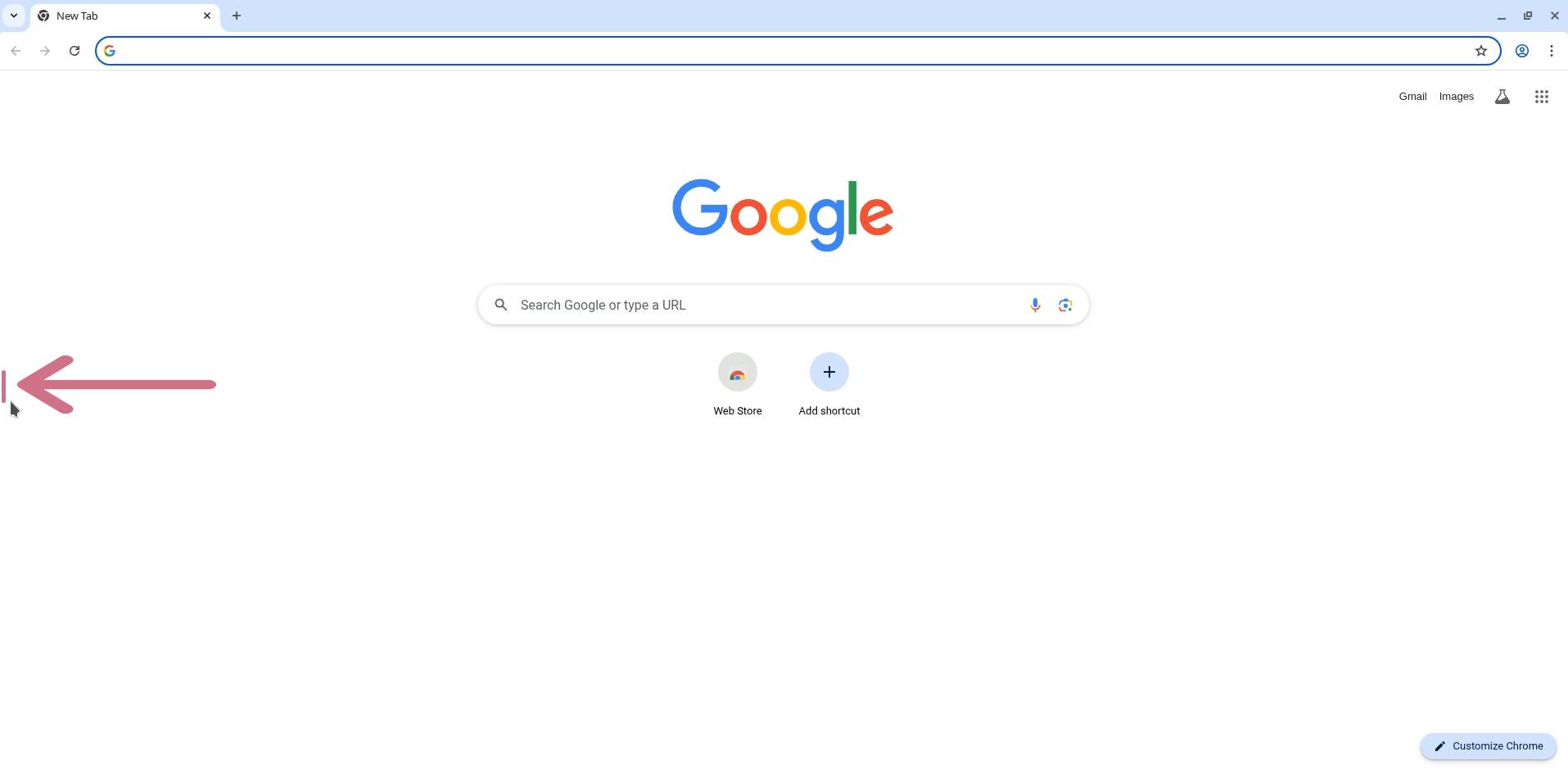
- Click to open the left side menu.
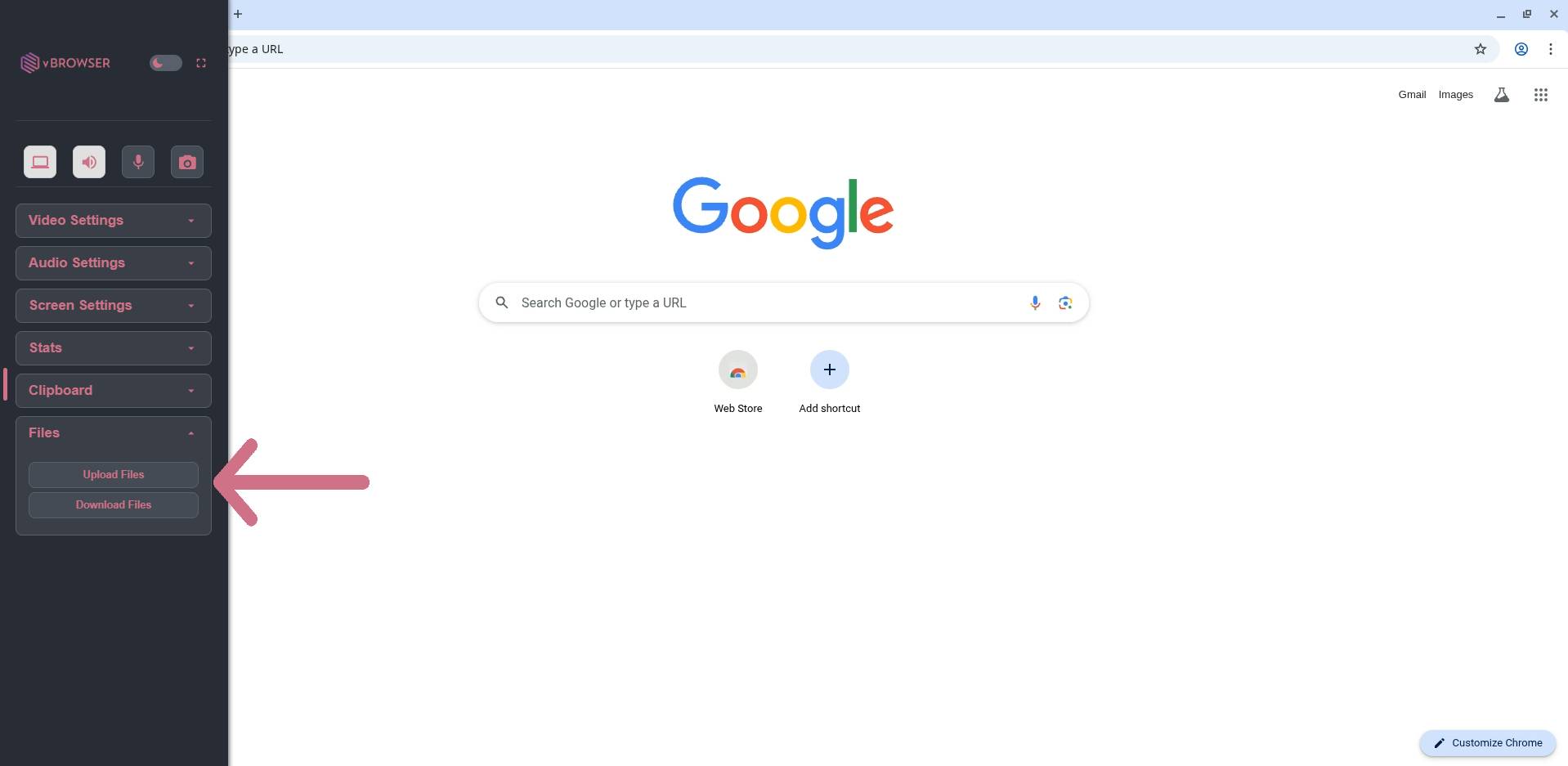
- Click the "Files" section on the sidebar.
- Click the "Upload Files" button to open an internal file explorer.
Users will only be able to upload files to the
/config/Desktopdirectory.Drag and drop is currently not supported. - A file explorer will populate, select the file(s) to upload and submit.
Download
- Click to open the left side menu.
- Click the "Files" section on the sidebar.
- Click the "Download Files" button to open an internal file explorer.
Users will only have access to the
/config/Desktopdirectory and children directories. -
Files will be zipped using 7zip and have a password of
infected. These files may be dangerous. - Click on desired file to download.
By performing this action, you will be actively downloading files from the session into a password-protected 7-ZIP file. These files are offered “as-is” and may contain malicious content. By downloading, you acknowledge and accept all risks, confirm you have the necessary knowledge to handle potentially harmful files, and agree that you are solely responsible for any resulting damage or loss. We disclaim all liability for any security breaches, malware, or other adverse effects. It is strongly recommended that you use up-to-date antivirus software and other security measures.